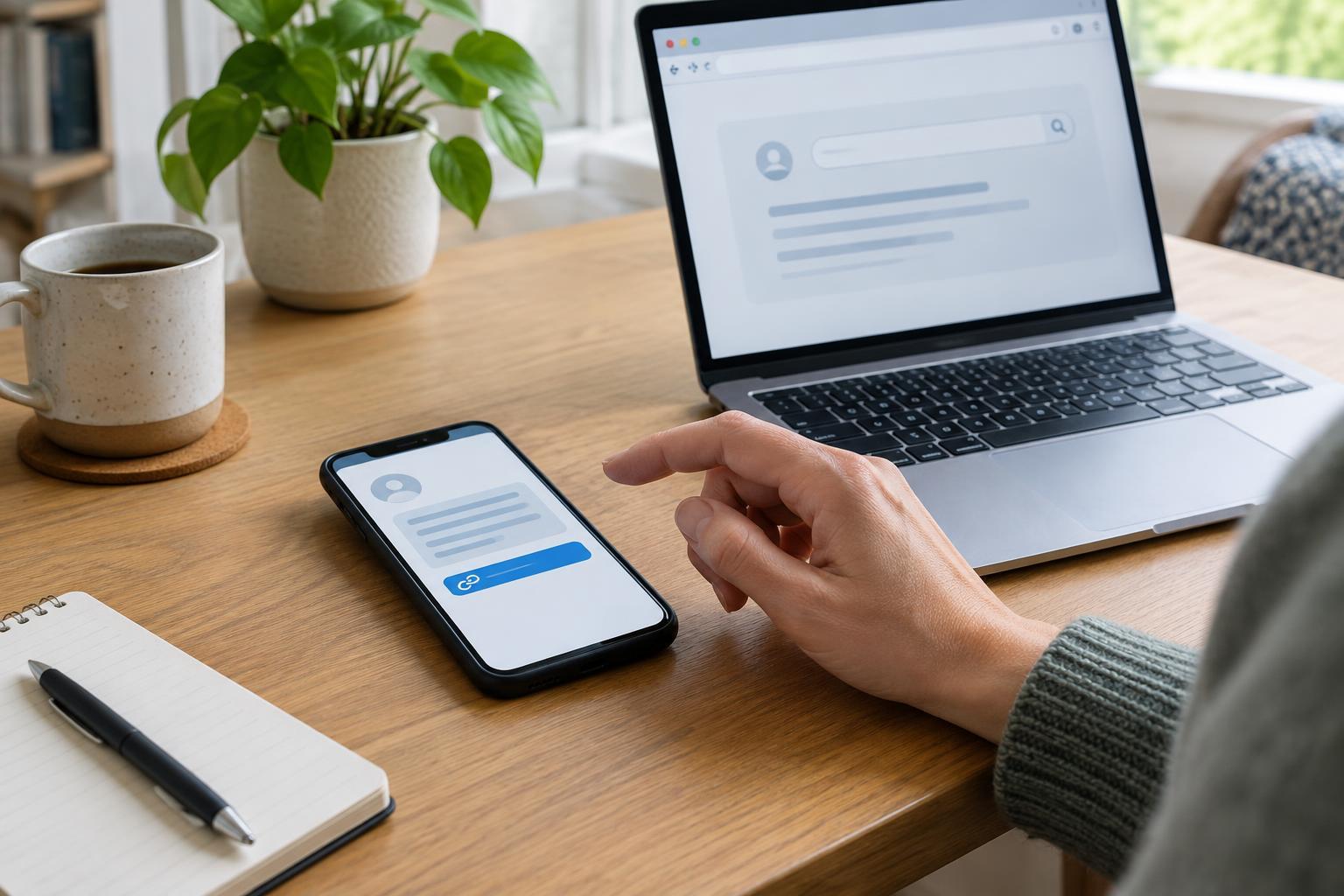
Start by identifying what is different
If a service website works on a computer but not a phone, note exactly where the phone gets stuck. Does the page fail to load, display incorrectly, reject a sign-in, or stop when you upload a document? A brief description of the problem will help you test one cause at a time instead of changing several settings at once.
First, confirm that you are opening the same website on both devices. If you followed a link from a text message or search result on your phone, compare its address with the one you used on the computer. For a public service, it is safer to navigate from an official page you already trust than to enter personal details through an unfamiliar link. Do not assume that a convincing logo or page design proves a site is official.
Check the connection and the browser
Try opening another familiar website on the phone. If that also fails, the problem may be the connection rather than the service. Switch between Wi-Fi and mobile data if both are available, then reload the page. A poor connection can leave a form partly loaded, so avoid submitting it repeatedly without checking whether your first attempt went through.
If other sites work, close and reopen the affected tab. You can also try the page in another up-to-date browser on the phone. Updating the browser may resolve display or sign-in problems, but use your device’s normal app store or update settings rather than an update prompt from an unexpected page. If you have many tabs open, closing unused ones and restarting the browser are simple next steps.
Some sites need cookies or scripts to keep a session open. Private browsing, strict tracking settings or content blockers can sometimes interfere with those functions. Rather than turning off protections across your phone, test the site in a regular browser window or temporarily pause a blocker for that trusted site. Restore your preferred settings afterward.
Look for small-screen and sign-in problems
A button may be hidden below the visible part of a phone screen, especially when the on-screen keyboard is open. Scroll slowly, turn the phone sideways, or close the keyboard to see whether more of the form appears. If the browser offers a desktop-site view, it may help with a page that is poorly adapted to phones, though the smaller text can make it harder to use.
Sign-in steps can also behave differently across devices. A code sent by text or email may expire while you switch apps, and switching back may reload the page. Read the instructions before requesting a new code, and check which browser tab you return to. If you use a password manager, make sure it has selected the account you intended. Avoid sharing a one-time code with anyone who contacts you unexpectedly.
If an upload fails, check that the requested file is saved on the phone and that you can open it there. A file visible on your computer may not be available on your phone. Review any size and format requirements shown on the service page before trying again; repeatedly submitting the same unsuitable file is unlikely to help.
Protect your information while troubleshooting
Be cautious with quick fixes that ask for broad access to your device. Do not install an unfamiliar app, give a stranger remote control, or send identity documents by ordinary message just because a page is difficult to use. If you clear browser data, remember that this may sign you out of other sites and remove saved preferences; try less disruptive steps first.
When you need help, describe the device, browser and point where the problem occurs. A screenshot can show a broken layout or error message, but check it carefully before sharing: it may reveal your name, reference number, address or other private details. Keep passwords and verification codes out of any support request.
Choose a workable alternative
If the task works on your computer and you have safe access to it, completing it there may be simpler than fixing the phone immediately. On a shared computer, sign out when finished and avoid saving your password. If you must use a phone, look on the service’s official website for other ways to complete the task, such as a contact channel or an in-person option. Availability varies by service.
For a task with a stated deadline, do not wait indefinitely for the mobile page to improve. Check the official instructions for alternative routes and any guidance about technical difficulties. Keep a private note of what you tried and when, without assuming that a failed page changes the deadline. The aim is to separate a device problem from a service requirement, then use a route you can access with confidence.