Plan the task before you sit down
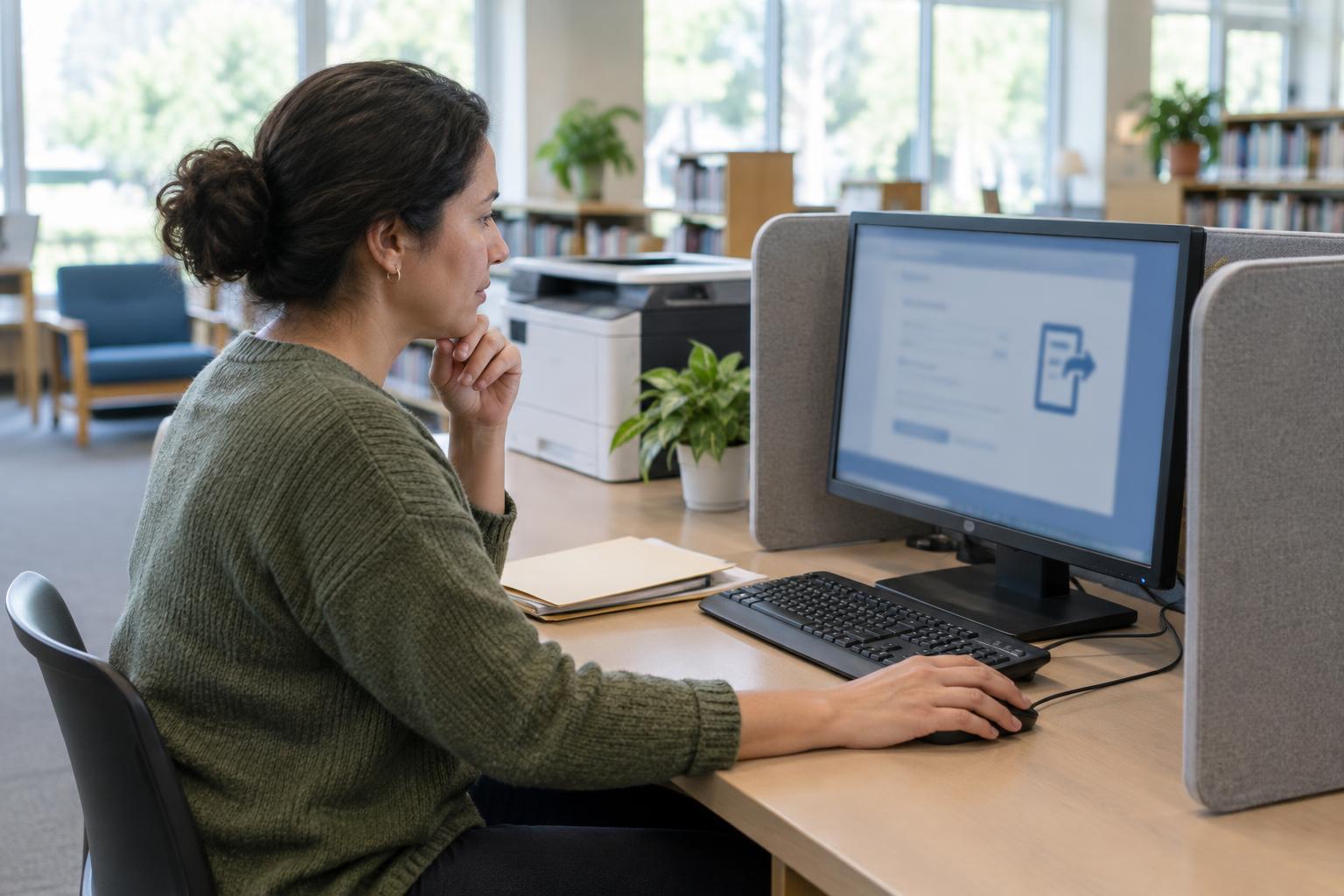
A library or community centre computer can be useful for reading service information, filling in forms and printing documents. It is also a space other people use, so decide what you need to do before opening a browser. Write down the name of the service, the task you want to complete and any questions you need answered. Bring only the documents the task requires. If you can check requirements on an official information page first, you may avoid taking unnecessary personal papers with you.
Think about how much privacy the task needs. Reading general guidance is different from entering an address, account details or information about someone you care for. If the computer is in an open area, choose a seat where others are less likely to see the screen, if one is available. You can also ask staff whether there is a more private place to work or whether they offer help using the equipment. Staff may be able to explain the computer or printer without needing to see the contents of your form.
Reach the right website and protect sign-in details
When a task involves an account, start from a web address you trust rather than a link in an unexpected message. Check the address shown in the browser before entering a password. A page that looks familiar is not, by itself, proof that it belongs to the service you intended to use. If you are uncertain, pause and use the service’s published contact information to confirm where to sign in.
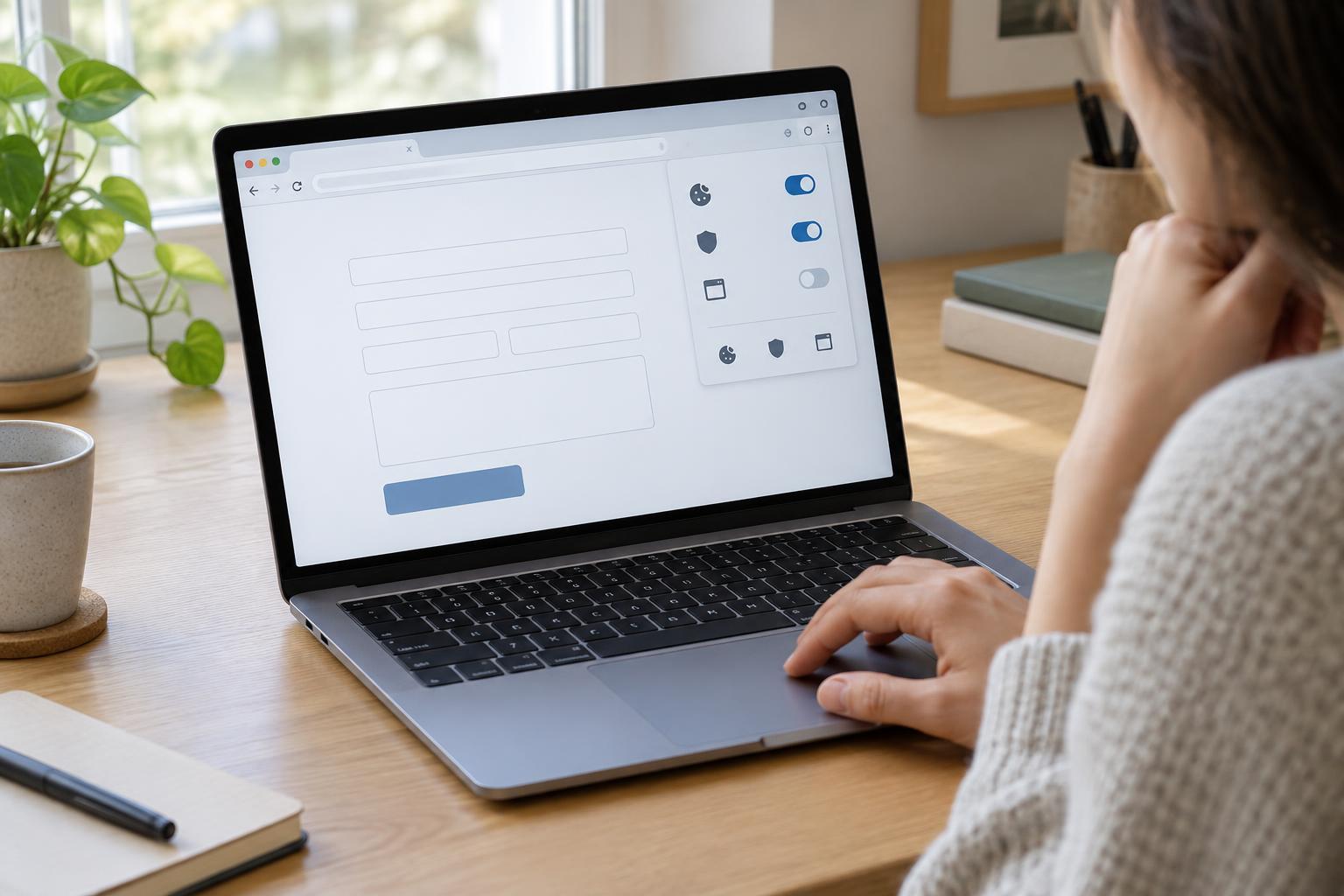
Do not let the browser save your password or payment details, and avoid selecting options such as “remember me” or “keep me signed in.” If a sign-in asks for a one-time code, keep that code private too. You may need access to your phone or another trusted way to receive it. Never share a code with someone offering to complete the task for you. Where possible, use your own contact information for account recovery so you can regain access later without relying on the shared computer.
Handle files, forms and printing deliberately
Online forms sometimes ask you to upload a document or download a copy of your answers. On a shared computer, check where each file is being saved. If you scan a document, ask how the scanner stores files and whether you can remove the copy when you finish. Give a file a clear, non-sensitive name so you can identify it without putting personal details in the filename. Before uploading, check that you have selected the intended document, especially if other files appear in the folder.
If you print, collect every page promptly, including pages that print after a delay. Check the printer tray for an incomplete or duplicate copy. If a form fails to print, ask staff how to clear the print job rather than repeatedly sending it. For records you need to keep, a printout or a download to your own storage may be useful, but check that it contains the information you expect before leaving. Avoid storing sensitive files on a shared desktop simply to retrieve them later.
Finish with a privacy check
Before your session ends, sign out of each account you opened. Close all browser tabs and delete any personal files you downloaded, uploaded from temporary storage or created during the session. Empty the computer’s trash or recycle bin if you can do so without affecting anyone else’s files. If you used a scanner or printer, check those areas once more for originals and copies. Do not assume that closing the browser or using a private browsing window removes downloaded files or printed pages.
These steps reduce what the next user might encounter, but they cannot guarantee complete privacy on a computer you do not control. If you accidentally leave a sensitive page open or a document behind, tell the facility staff as soon as you notice. If you think someone else may have seen your password, change it from a device you trust and review the account’s available security options.
Choose another route when the setting does not fit
A shared computer is not always the best place for a lengthy or sensitive task. Time limits, accessibility needs, unreliable printing or a crowded room can make it hard to review information carefully. You can save a list of questions for later, look for an official phone or in-person service option, or ask whether the facility offers an accessible workstation or a longer session. If you help someone else with a service task, agree in advance which details they are comfortable sharing and let them enter their own password when possible.
The goal is not to avoid shared computers altogether. It is to match the task to the setting: use the computer for what you can do comfortably, verify the website, keep control of documents and sign out when finished. Taking a few minutes to plan and check your work can make a shared device a more practical way to access public information and services.