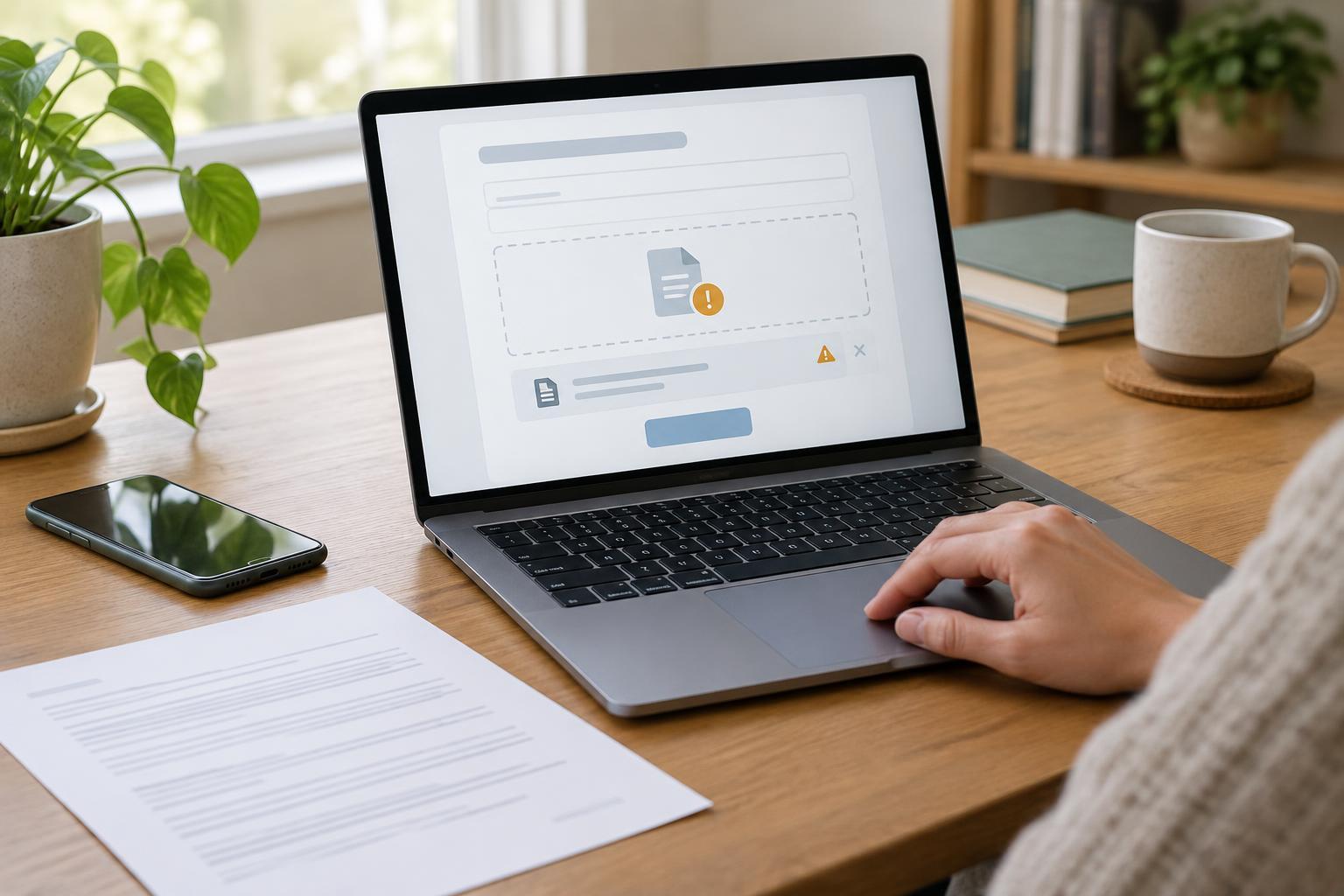
Check the form before choosing a file
Online forms often ask you to attach a document, such as a letter or a photograph. Before selecting a file, read the instructions beside the upload button. Look for accepted file types, a maximum file size, whether multiple files are allowed, and any requirement to show every page of a document. These rules vary by form. If the instructions are unclear, use the service’s own help pages or contact details rather than guessing.
Common file types include PDF for documents and JPG or PNG for images. A file’s name may end in an extension such as .pdf or .jpg, but changing that ending does not convert the file itself. Use a device feature such as “Save as PDF” or an image export option if you need a different format. Avoid sending a link to a file stored elsewhere unless the form specifically asks for one.
Prepare a file that is easy to read
Open the file before uploading it. Check that the correct document is there, all required pages are included, and names, dates, and other relevant details are legible. If you photographed a paper document, make sure it is in focus, fully visible, and not obscured by glare or shadows. Rotate sideways pages if your device offers that option. Keep the original document or file in case you need to try again.
Give the file a short, recognizable name so you can identify it when the file picker opens. A name such as “supporting-letter.pdf” is easier to spot than a string of camera-generated characters. Do not put sensitive information, such as an account number, in the filename unless the form explicitly requires it. On a shared device, check which folder the file is saved in and consider who else can access it.
What to do if the file is too large
A size limit usually refers to each file, though some forms also set a combined limit for all attachments. The limit may be shown in KB or MB. If you see a “file too large” message, compare the file’s size in your device’s file information with the limit stated on the form. Do not assume that a file which uploads successfully elsewhere will fit this form.
To reduce a file’s size, try a lower-resolution scan that remains readable, remove blank pages, or use a device’s PDF compression or image resizing feature. Check the result before submitting it: a smaller file is not useful if the text becomes hard to read. If the form permits several attachments, separating a long document into parts may help, but check whether it limits the number of files. Avoid using an unfamiliar online converter for sensitive documents; it may require you to send a copy to another service.
Read error messages as clues
“Unsupported file type” usually means the form does not accept the file’s format. Check the accepted types and convert the file properly if needed. “File too large” points to a size limit. A message about a missing attachment may mean you selected a file but did not complete an additional upload step, or that the form did not retain the selection. Some forms also require you to choose a document category before attaching anything.
If an upload stalls or shows a general error, check your connection and wait briefly before trying again. Refreshing the page can erase information you have entered, so save any permitted draft or copy non-sensitive answers first. You can also try a supported browser, update it if needed, or reopen the form. If an error persists, note its exact wording and use the service’s official help channel. Include only the details needed to describe the problem; do not send the document itself to an unverified contact.
Confirm the upload and protect your information
Selecting a file is not always the same as uploading it, and uploading it is not always the same as submitting the whole form. Look for a filename, preview, progress indicator, or confirmation beside the attachment field. Then review the form and complete its final submission step if one is required. If you receive a confirmation page or reference number, save it in a way you can find later. Avoid submitting the form repeatedly just because a confirmation email has not arrived.
Before attaching personal documents, check that you are on the service’s intended website by reaching it through a trusted route, such as a link from its official information page. Read what the form asks for and provide only the relevant material. When finished on a shared or public device, sign out, close the form, and remove any temporary copies you created if it is safe and appropriate to do so.