Decide what the copy needs to show
Before scanning, think about how you will use the copy. A file kept for your own records may have different requirements from one you plan to upload to a service. If you are submitting a document, read that service’s instructions first. It may specify an accepted file type, size limit, or whether every page and both sides must be included. A clear scan does not necessarily replace an original paper document, so keep originals when they may still be needed.
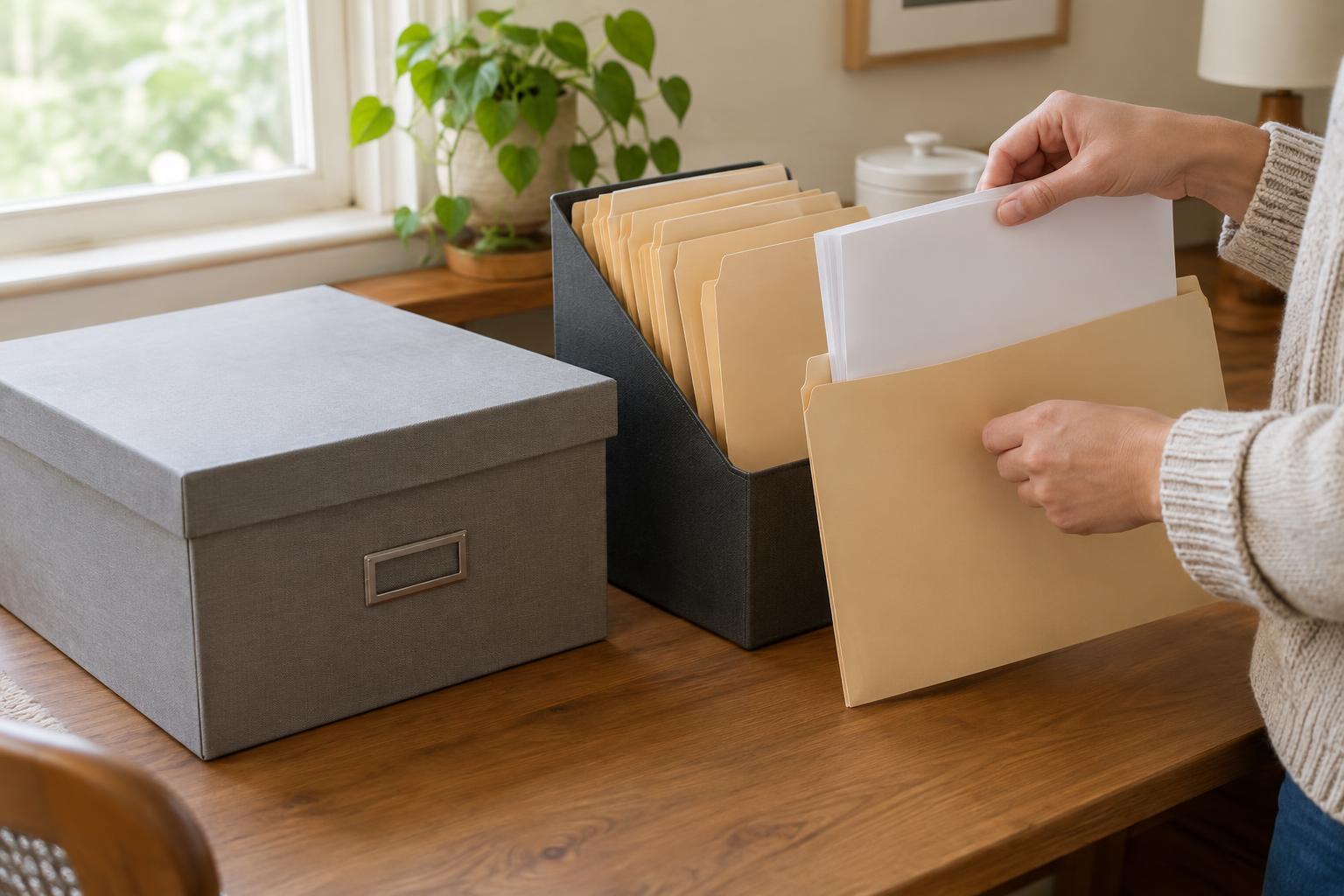
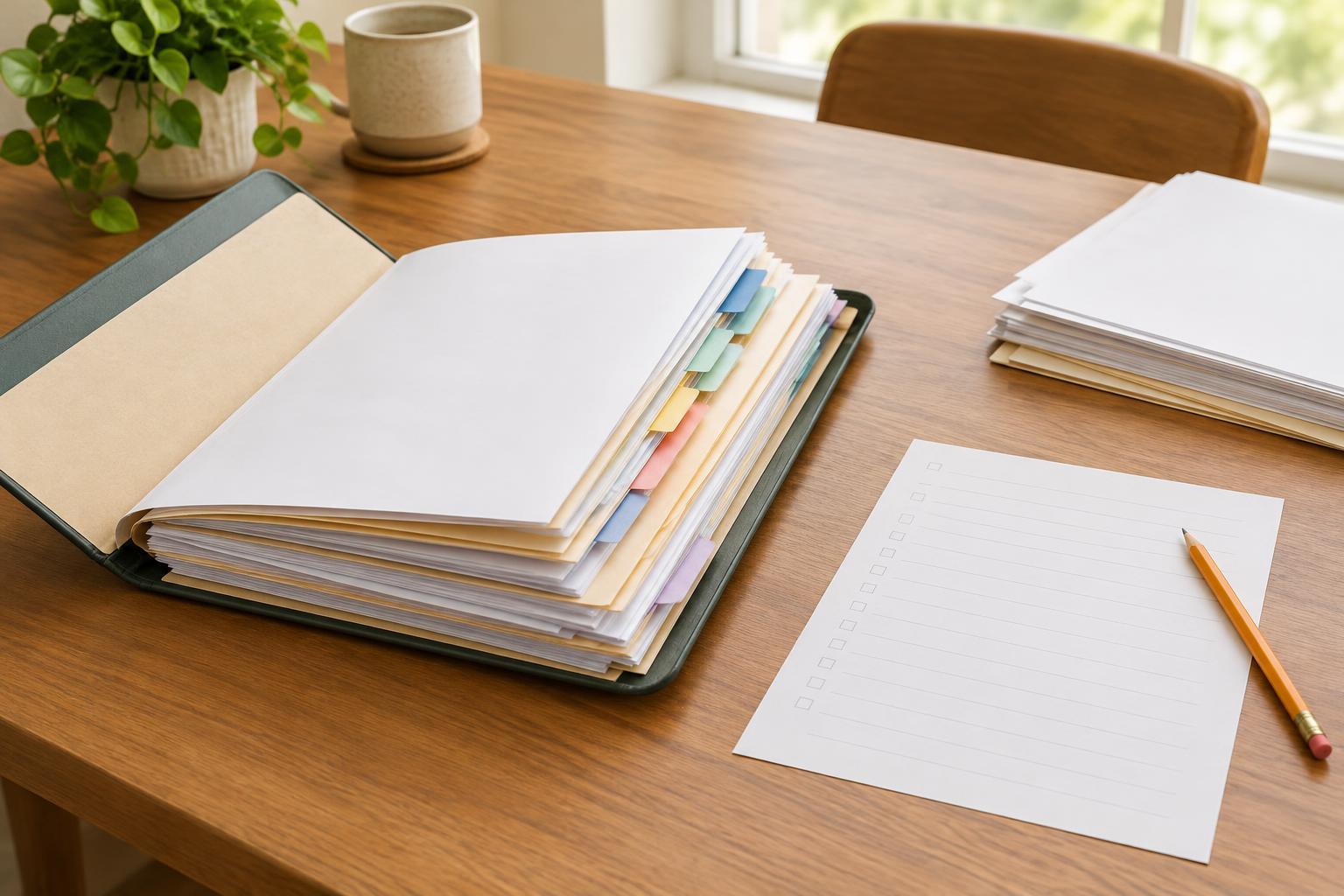
Gather the pages and put them in order. Remove staples or clips only if you can do so without damaging the paper. Check for writing on the back, attached notes, embossed marks, and faint stamps that could be missed. If a document has several pages, count them before you begin so you can confirm that the finished file is complete.
Set up for a clear scan
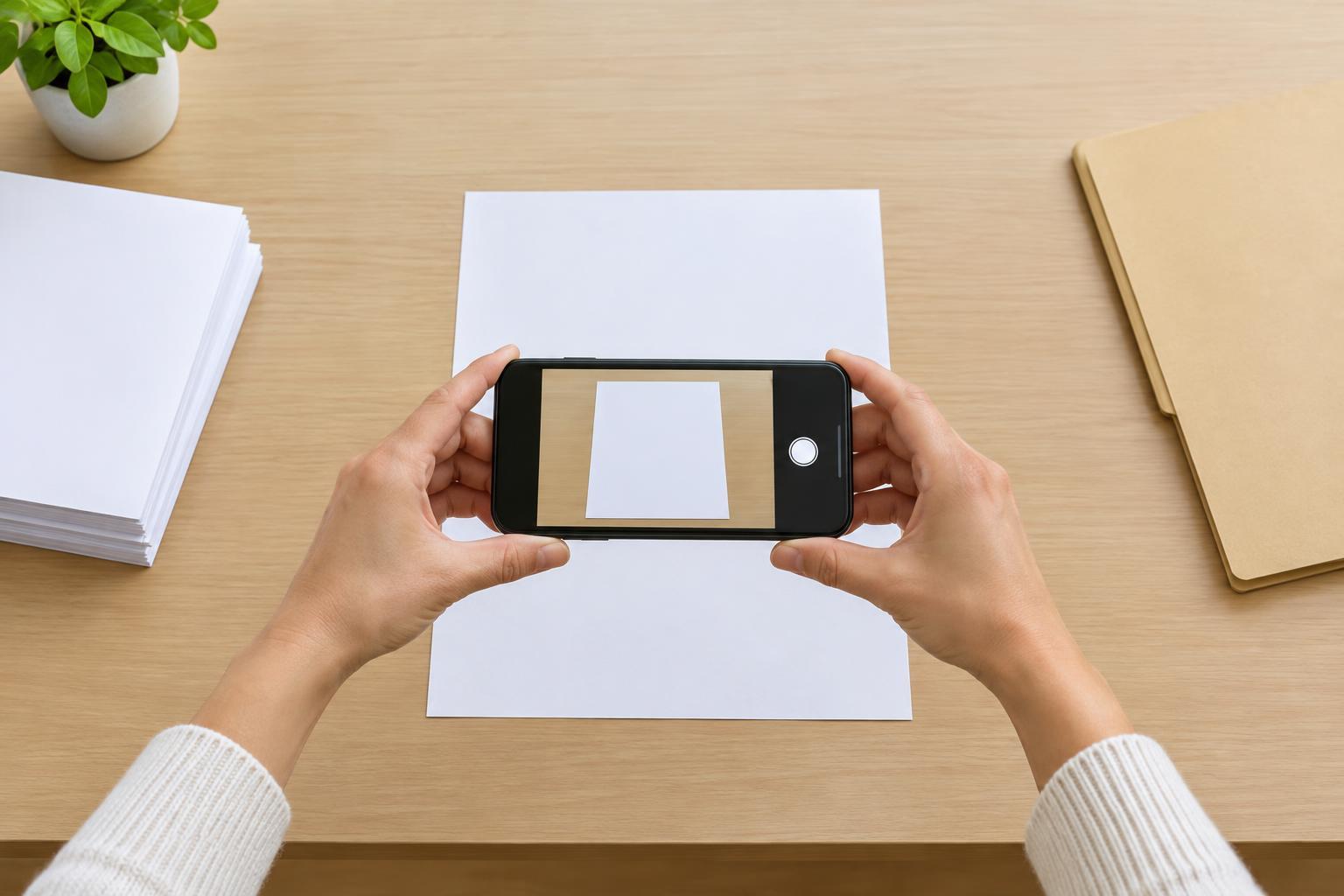
A flatbed scanner works well for loose sheets, while a phone’s document-scanning feature can be convenient when a scanner is unavailable. Place the page on a flat, contrasting surface and straighten folded corners where possible. Use even light rather than a bright lamp aimed at one spot. Avoid shadows from your hand or phone, and watch for glare on glossy paper. Hold the camera directly above the page so its edges do not appear distorted.
If your app offers automatic edge detection, check its suggested crop before saving. Leave enough space to show the entire page, including small text near the margins. For typed pages, grayscale may make text easy to read; color can be useful when colored stamps, highlighting or other visual details matter. Avoid filters that make faint marks disappear. If an image looks blurry or a corner is cut off, scan that page again rather than hoping it will be understood later.
Check the finished file, not just the preview
Open the saved file and look through every page at a comfortable reading size. Confirm that text is sharp enough to read, pages face the right way, and nothing important is hidden by a crop, shadow or finger. Zoom in on small print, dates, reference numbers and signatures. Check that front and back images are in the right order. A quick review now can prevent the frustration of discovering a missing page when you need the document.
PDF is often convenient for a multipage document because it keeps the pages together. An image file may suit a single page, but follow the receiving service’s stated requirements if you intend to upload it. Some scanning tools can make text searchable through optical character recognition. That feature can help you find words later, but it may misread faint or handwritten text. Keep the visible page images and verify any text you copy from them.
Name and organize copies so you can find them
Give each file a descriptive name that will make sense months from now, such as Housing_letter_2025-04_pages1-3.pdf. The example date is a naming convention, not a requirement; use a consistent format that works for you. Avoid names such as Scan001.pdf, which give little clue about the contents. If you make a corrected version, distinguish it from the earlier one so you do not accidentally send an incomplete copy.
Create a small number of folders based on how you look for documents, such as housing, care or correspondence. Keep related pages together, but do not combine unrelated personal records simply because they arrived on the same day. Consider making a backup in a second place you can access. Before relying on it, confirm that the backup opens and includes the latest version.
Handle sensitive documents carefully
Letters and forms may contain addresses, account details or other personal information. Use a device and storage location you trust, protect access with a device lock, and check whether your scanning app automatically uploads files to an online account. If you use a shared computer or printer, remove your pages, sign out of accounts and delete temporary copies where appropriate. Be cautious about sending sensitive scans by ordinary email if a service offers a designated upload route.
When you are ready to share a file, check both the recipient and the document one more time. Send only the pages requested unless the instructions say otherwise. If a service asks you to obscure particular information, follow its directions; otherwise, do not edit away details that may be needed to understand the document. A simple routine—prepare, scan, review, name and store—helps make digital copies useful without losing track of the paper originals.