Check how the form saves before you begin
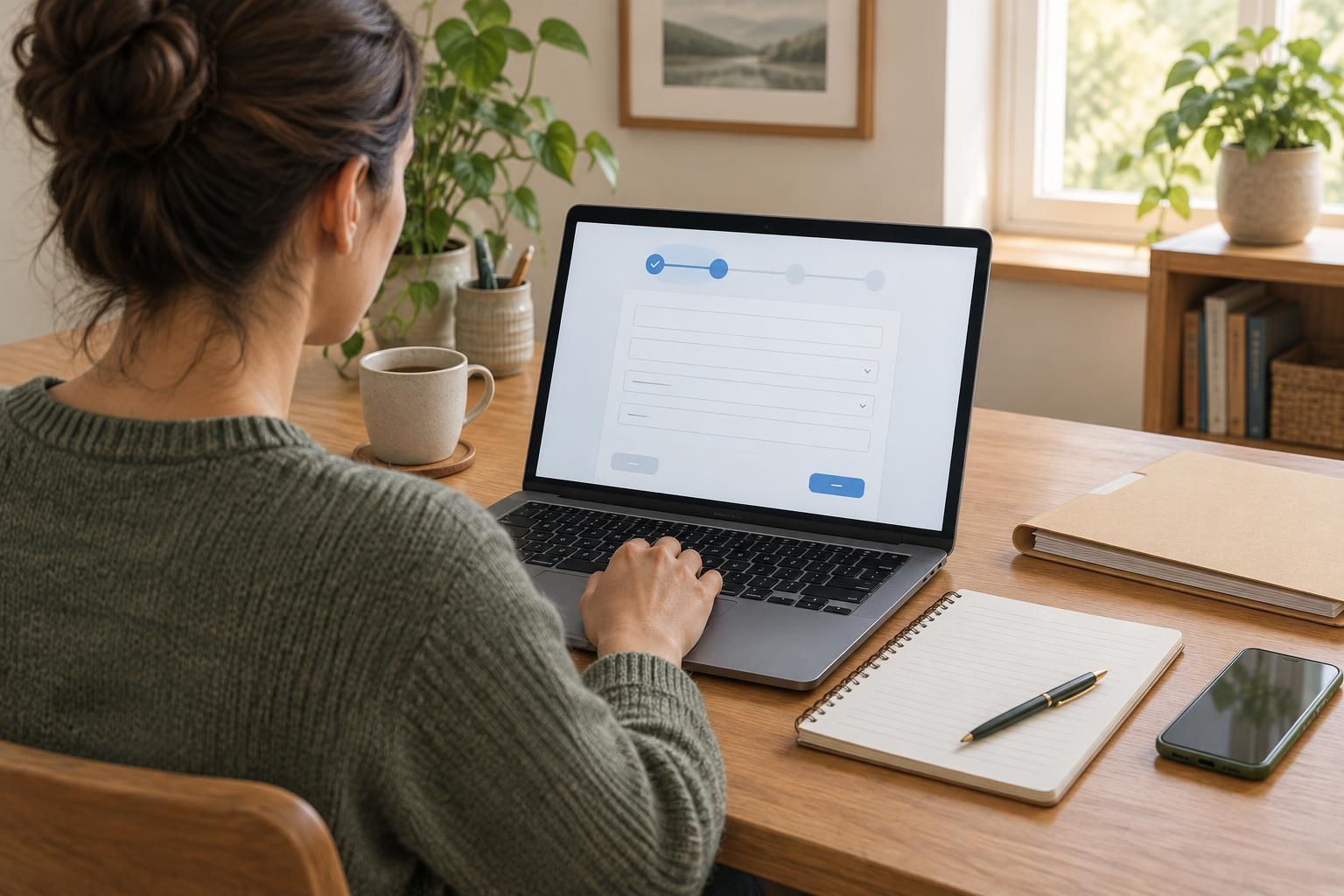
Before entering detailed answers, look for instructions about saving, returning later and session time limits. Some forms have a Save button, some save automatically, and others keep answers only until you close the page. A progress bar tells you how much of the form you have completed, but it does not necessarily mean your answers have been saved. If the form allows you to create an account or receive a return code, note how you will get back to your draft.
If the saving method is unclear, enter a short answer in a non-sensitive field and move to another page, then return to see whether it remains. Do this only if you can safely test the form without submitting it. Look for a confirmation message after using Save. Do not assume that leaving a browser tab open overnight will preserve your work: a session may expire even while the page is visible.
Prepare longer answers outside the form
Read through the form first, if possible, and gather the documents and details it asks for. For long written responses, consider drafting in a document or notes app, then copying your answers into the form. This gives you a working copy if a page reloads or your connection drops. Keep each draft answer beside a brief description of its question so you do not paste it into the wrong field.
Treat that working copy as private if it contains personal information. Save it on a device you control, use its available screen lock or file protections, and delete it when you no longer need it. Avoid putting sensitive answers in a shared document, a public computer’s notes app or an unprotected message to yourself. If you use a shared device, plan to finish without leaving your drafts behind.
Work in small steps and watch for timeouts
Use the form’s own Next, Back and Save controls rather than relying on your browser’s Back button. Save after each section when the form offers that option, and check for any message confirming the save. If you need to pause, follow the site’s sign-out instructions and keep any return code in a safe place. A return code may be needed to reopen a draft, so do not leave it on a note beside a shared computer.
A warning that your session is about to expire is a signal to save immediately, if you can. If you are interrupted, do not keep typing into a page that may already have timed out. First check whether the form is still accepting and saving changes. When you return after a break, review your earlier answers: a saved draft may not include the last few changes you made before the interruption.
Handle uploads and browser problems carefully
If the form requests files, check its accepted file types, size limits and naming guidance before uploading. Keep the original documents until you know the upload succeeded. A file appearing in a selection box may not mean it has finished uploading; look for the form’s completion message or a list of attached files. If an upload fails, try the form’s stated guidance before changing or compressing a document.
If the page freezes, wait briefly before clicking again so you do not accidentally send the same action twice. Check your connection and any visible save status before refreshing. Refreshing, closing a tab or switching devices can discard unsaved text. If the problem continues, use the site’s published help information and explain which page or step caused trouble without sending personal answers through an insecure contact channel.
Confirm the final submission and tidy up
Saving a draft is not the same as submitting a form. Before selecting Submit, review required fields, uploaded files and any declarations the form asks you to confirm. After submitting, look for a clear confirmation page, reference number or message explaining what happens next. If the site offers a receipt or a copy of your answers, save it somewhere private. If no confirmation appears, check the site’s instructions before submitting again.
On a shared device, sign out, close the form and remove any downloaded copies or temporary drafts you created there. On your own device, keep the confirmation with your related documents so you can find it later. The exact saving and submission steps vary by website, but checking each stage—draft, upload and final confirmation—makes it easier to spot a problem before your work is lost.