Start with the document you need to copy
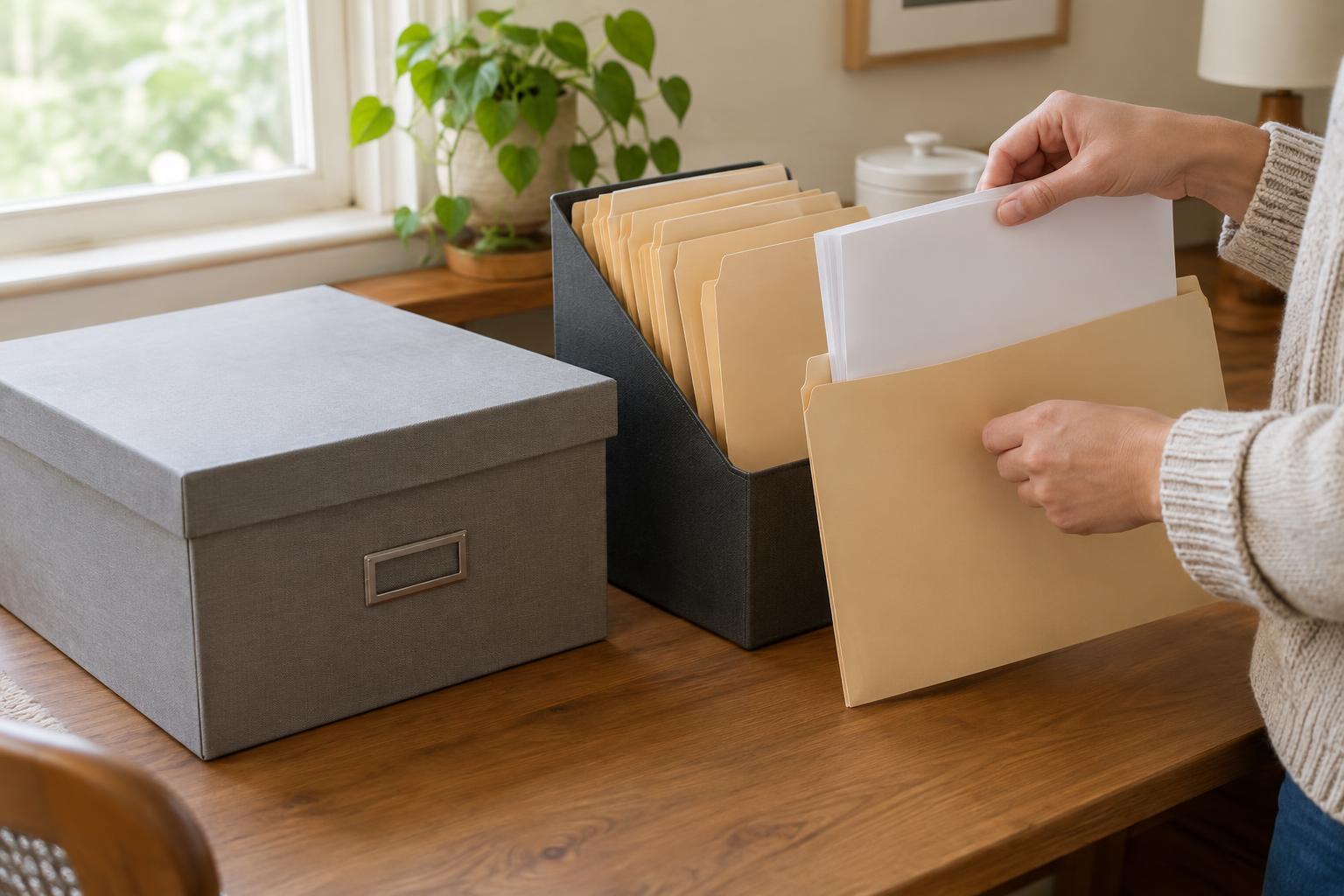
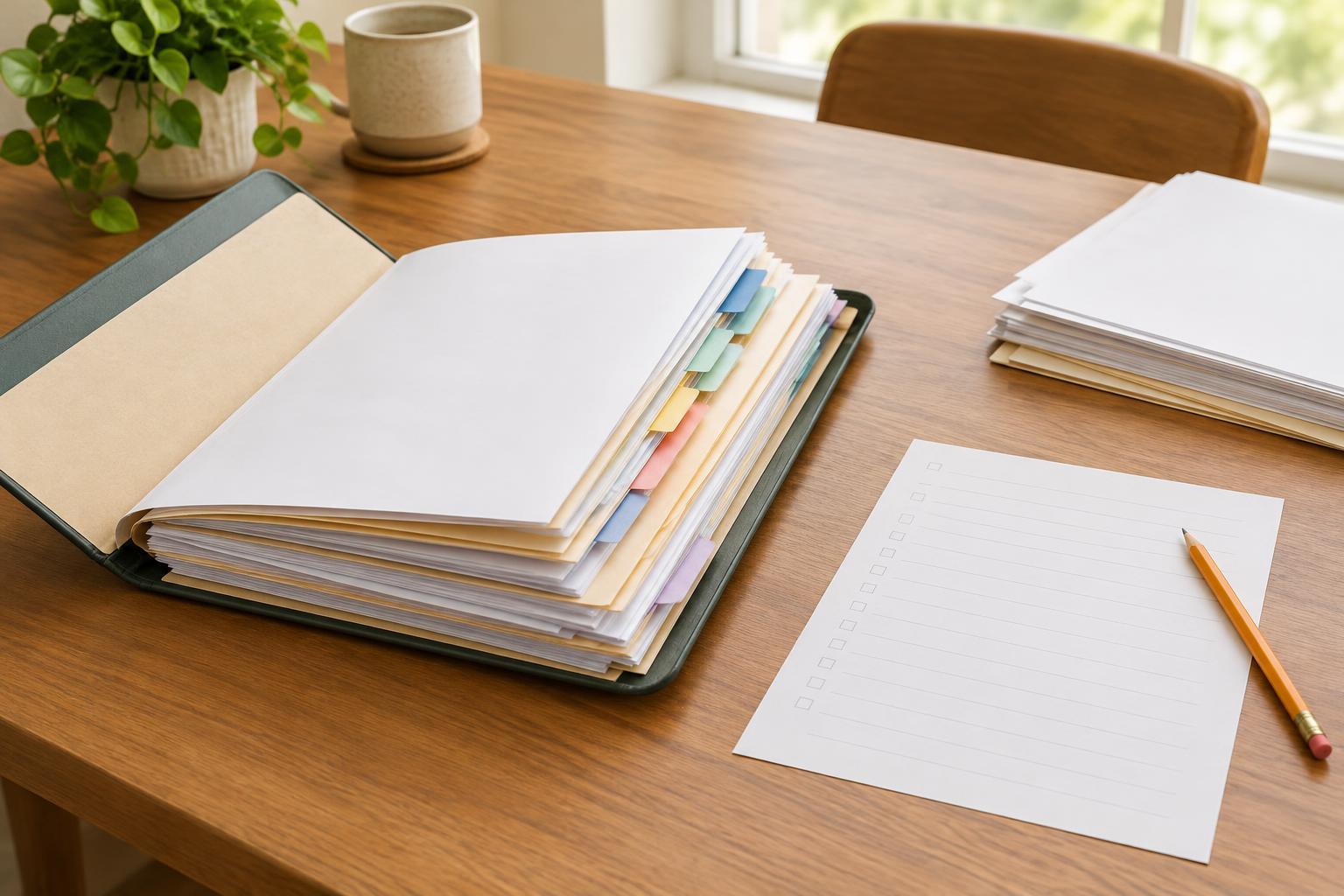
A scan can look finished even when a page is missing. Before scanning, put the paper document in order and count its pages. Check both sides of each sheet: a page that appears blank may contain a reference number, signature, stamp or note. If the document has numbered pages, compare the sequence with the physical stack. Keep any attachments with the document, but make sure you know which pages belong together.
Remove staples only if it is safe and appropriate to do so, and straighten folded corners. Place each page flat so its edges are visible. If you are using a phone, set the paper on a contrasting surface in even light. Shadows, glare and fingers across the page can hide information that you may not notice until later.
Check completeness in the saved file
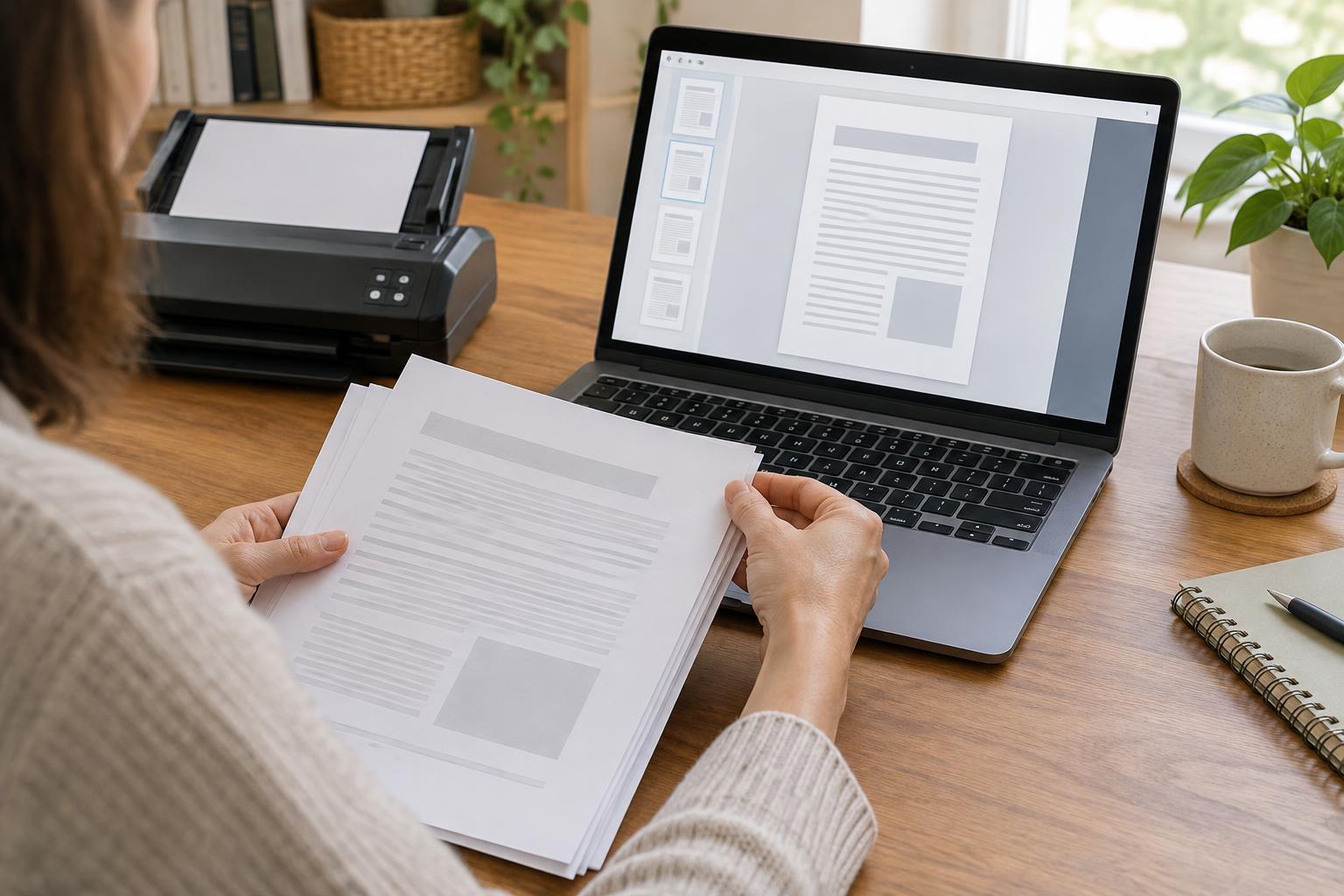
Open the finished file rather than relying on the scanner’s preview. Count the pages in the file and compare that count with the pages you intended to include. Move through the file from first page to last, checking that the order makes sense and that no page appears twice in place of another. Look for backs of pages, inserts and small slips that may have been overlooked.
Pay particular attention to the first and last pages. A document feeder may skip a sheet, while a phone-scanning app may save a final image separately if the scan was interrupted. If the file contains several documents, check where one ends and the next begins. When the receiving organization asks for separate files, follow its published instructions rather than combining everything into one scan.
Test whether a reader can make out the details
View each page at a comfortable reading size, then zoom in on small print, dates, reference numbers and handwritten entries. Text should be sharp enough to distinguish similar characters. Check that nothing is cropped at the edges, especially letterheads, footnotes, signatures and marks near the margins. A page can be technically present but still unusable if part of it is hidden.
Look for faint areas, dark bands, glare and tilted pages. If a page is hard to read on your screen, rescanning it is usually better than hoping someone else can decipher it. Color scanning may help when colored marks or faint stamps carry information; otherwise, use the format and settings requested by the recipient. Avoid editing the content to make it look different from the original. The aim is a clear, faithful copy.
Make sure the file is usable
Close and reopen the saved file to confirm that it works outside the scanning app. If you will submit it through an online form, check the form’s stated file types and size limits before you begin. A readable scan is of little use if the upload system cannot accept it. If a file is too large, use a suitable compression option and inspect it again afterward; compression can make small text harder to read.
Give the file a clear, neutral name so you can identify it later, such as a document type and the date shown on the document. Avoid putting sensitive personal details in the filename unless they are specifically required. Save a copy somewhere you can find it, and take care when using a shared device or cloud account. A scan may contain addresses, account details or other private information.
Do one final review before sharing
Your final check can be brief: compare page counts, scan through the pages in order, read the smallest important text and reopen the exact file you plan to send. If you have rescanned a page, confirm that the corrected version—not the earlier blurry one—is in the final file. Keep the paper document unless the relevant instructions tell you otherwise.
If an official service provides document requirements, use those requirements as your guide for what to include and how to submit it. This checklist helps with the quality of a copy; it cannot determine whether a particular document will meet an organization’s rules. Checking before you share gives the recipient a better chance of reading what you intended to provide and saves you from having to reconstruct the file later.