Choose one place to work from
Digital records can multiply quickly. A downloaded letter may sit in a browser’s Downloads folder, an email attachment, a cloud folder and a folder called “important documents.” Keeping several copies can be useful for recovery, but it becomes confusing when you edit or replace files in more than one place. Start by choosing one working folder: the place you normally open when you need to find, add or organize a document.
Give that folder a straightforward structure based on how you look for records. For example, you might keep separate folders for identity documents, housing, caring responsibilities and correspondence, then group correspondence by organization or year. Avoid making so many nested folders that you cannot remember where a file belongs. When a new document arrives, save it in the working folder and use that copy for routine access. Treat other copies as backups, not as additional working folders.
Understand what your backup does
A backup is a separate copy intended to help you recover files if the working folder is lost, damaged or changed by mistake. A synced folder serves a different purpose: it keeps files available across devices by passing along changes. Sync can be convenient, but an accidental deletion or unwanted edit may also spread. Some services offer file history or a way to recover deleted files, but those features vary and may not keep older versions indefinitely.
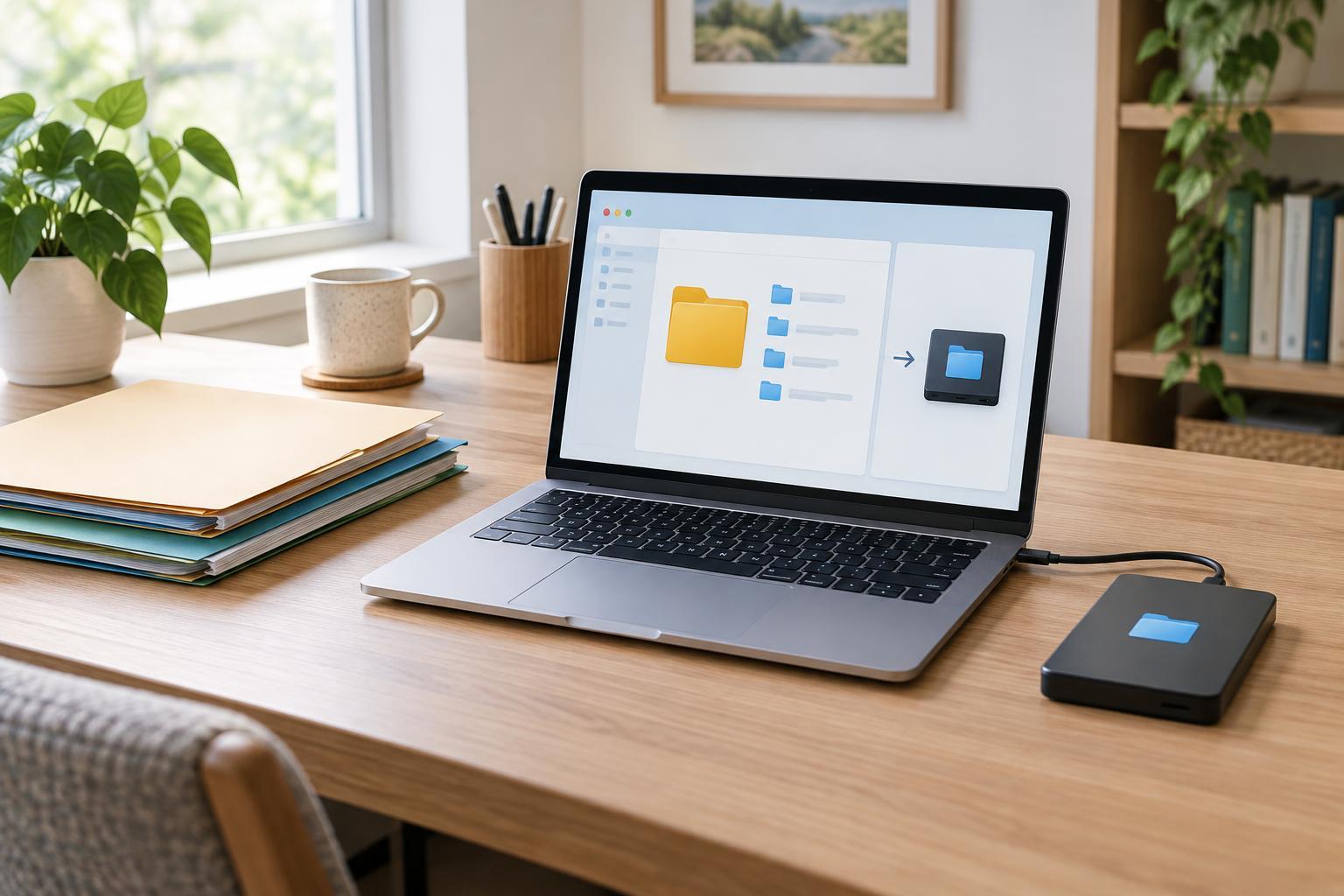
A simple approach is to keep your working folder in one location and make a backup to a separate location, such as an external drive or a backup service. You do not need a complicated system to benefit from this distinction. What matters is that you know which folder you edit, where its backup lives and how you would retrieve a file from it. If you use automatic backup software, check which folders it includes rather than assuming every document is covered.
Use names that explain a file’s purpose
Clear names reduce the urge to save another copy “just in case.” A name such as “housing-letter-2026-03.pdf” is easier to recognize than “scan004.pdf.” When a document has a genuine new version, add a meaningful label, such as “signed” or “submitted,” rather than creating a trail of files called “final,” “final2” and “final-new.” Keep the original if you may need to show what you received, and label any annotated or completed copy so the two are easy to tell apart.
Before moving or renaming files, pause if another person or application also uses the folder; changing a shared file path can make it harder for them to find. For scanned pages, check that the file opens and is readable before discarding an unclear scan. These small checks make the working folder more trustworthy, which in turn makes it less tempting to keep stray copies on the desktop or in Downloads.
Make backups on a routine you can maintain
Choose a backup routine that fits how often your documents change. If you add files frequently, an automatic backup may be easier to maintain than remembering to copy a folder by hand. If you use an external drive, connect it when you make the backup and store it separately afterward. A copy kept permanently beside the computer may still be vulnerable to the same accident, damage or theft.
Check a backup occasionally by finding a specific file and opening a restored copy in a temporary location. This tells you more than a message saying a backup completed: it confirms that you can locate and use the document. Make sure you know how to recover a whole folder as well as a single file. If a backup creates dated snapshots, leave their names and structure alone unless the backup tool instructs you otherwise; rearranging them manually may make recovery harder.
Protect sensitive records and clear up extras carefully
Community support records can contain addresses, identification details or information about other people. Use account passwords and device protections appropriate to the sensitivity of your files, and consider encryption where you can manage it confidently. Keep recovery details in a safe place you can access: a secure backup is less helpful if you cannot sign in or unlock it when needed. Be thoughtful about shared devices and folders, especially when you help someone else organize their documents.
Once your working folder and backup are established, review obvious extras such as old downloads and desktop copies. Compare file names, dates and contents before deleting anything; similar names do not guarantee identical files. If you are unsure, place possible duplicates in a clearly labeled review folder rather than deleting them immediately. The goal is not to have only one copy. It is to have one dependable working copy and backups whose purpose and location you understand.